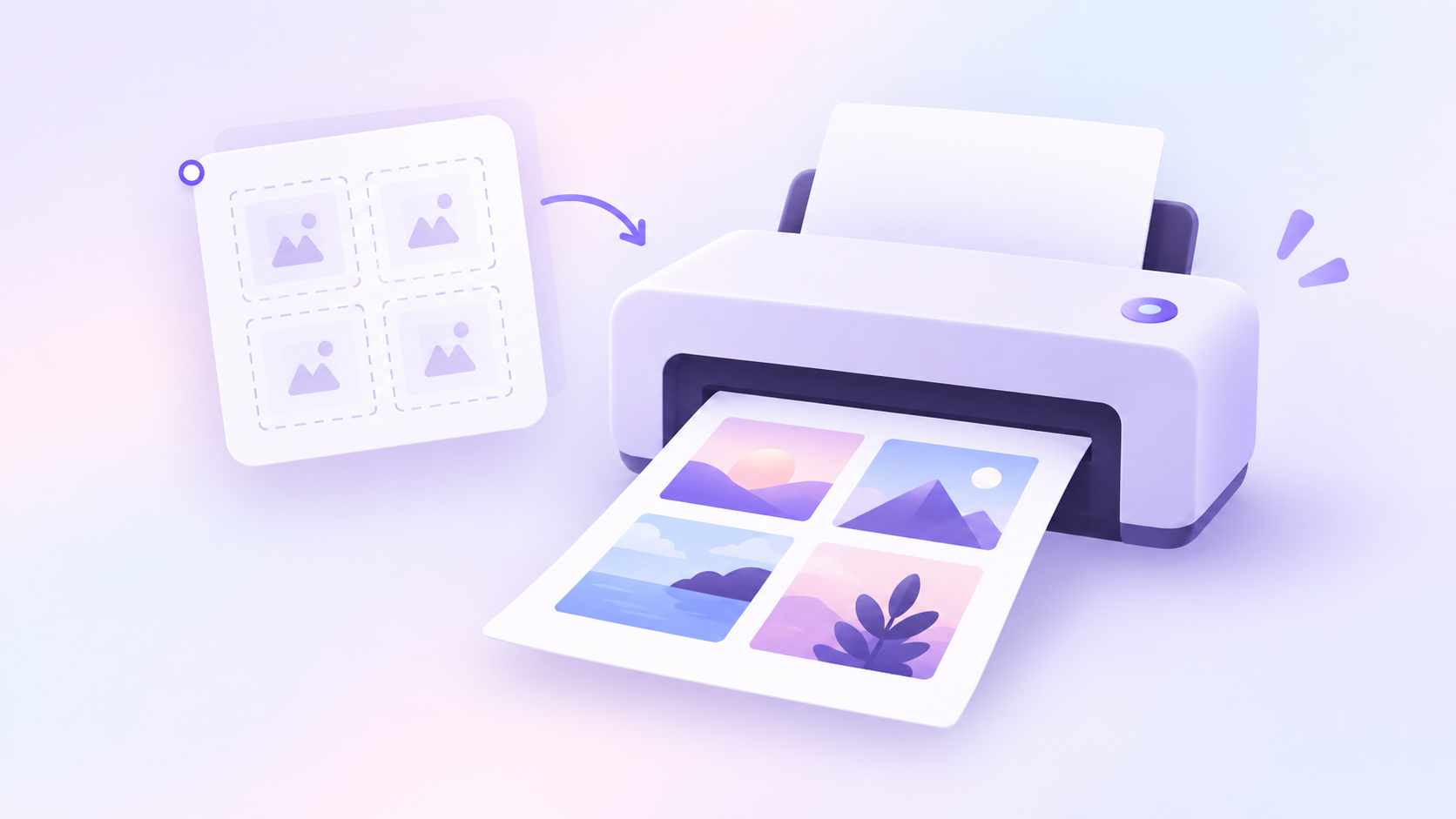
A simple way to save paper is to arrange several pictures on a single sheet before printing. You can set up the layout and preview the finished page before you print.
Step 1: Open the Print Multiple Pictures tool
Open the Print Multiple Pictures on One Page tool:
Step 2: Add your pictures
Click Choose Pictures and select the JPG, PNG, or WebP images you want to print.
You can add several pictures at once.
Step 3: Choose the paper size and layout
Select your paper size and orientation.
Then choose a layout. You can also adjust the page margin and gap between pictures if needed.
Step 4: Check the preview
Check the Your print sheet preview to make sure the pictures are arranged the way you want.
Use Fit whole picture if you want to keep the entire image visible.
Step 5: Print or save the page
Click Print / Save PDF.
In the print dialog, use 100% or Actual size if the physical paper size needs to stay accurate.